Abokado Labs · Bandwidth Meter

What's actually eating your bandwidth?

Bandwidth Meter is a small macOS menu bar app that shows your live upload and download rates, which apps are using your connection right now, your current Wi-Fi and public IP, and whether the internet is even reachable — without opening a single dashboard.

Free & open source MIT-licensed. Coming shortly to GitHub.

The whole UI, most of the time

It lives here.

A single line in your menu bar, next to the clock. Glance at it when something feels off — no app to switch to, no dashboard to load, no tab to keep alive.

Bandwidth Meter in the macOS menu bar, showing 699 B/s upload and 15 KB/s download in a stacked layout next to the system clock.
↑ 699 B/s · ↓ 15 KB/s — your actual menu bar, not a mockup.
How it works

A quiet readout. One click for the rest.

Bandwidth Meter sits in your menu bar showing live up and down rates next to the clock. Click it for the full breakdown — which apps are using bandwidth right now, how much each has used in the last hour or day, your current network identity, and the result of the latest speed test.

Glanceable by design
Live rates next to the clock. Pick the display you want — download only, upload only, both side by side, both stacked, or total traffic. Bytes or bits, auto-scaling units, your choice of font size. Stacked mode uses fixed-width rendering so the menu bar item doesn't jump as numbers change.
Per-app attribution
See which apps are eating your bandwidth. A live table shows download and upload per app, with rolling windows for the last hour, 12 hours, and 24 hours. Click an app to see its process identity, the bundle it belongs to, and a reveal-in-Finder button for apps you don't recognize.
Network identity and outage detection
Wi-Fi, public IP, VPN location, and online state. Shows your current Wi-Fi network, signal strength, local and public IP addresses, and the location the outside world thinks you're in — useful for verifying a VPN is actually doing what it claims. When the internet goes down, the menu bar switches to an outage indicator and the app pings more frequently until you're back.
Speed tests, without the CLI
Uses Apple's built-in networkQuality. No Ookla CLI install required. Run a test manually, or schedule one every 1, 3, 6, 12, or 24 hours. Results are stored locally and shown in the popover. The test runs against Apple's infrastructure so numbers won't match Ookla exactly — but they're consistent and they're already on your machine.
Local-first, no telemetry
No packets read, no traffic routed. Bandwidth Meter samples lightweight per-process counters and computes deltas. It does not inspect packet contents, decrypt traffic, install a Network Extension, run a VPN profile, or load a kernel/system extension. All history is stored locally. The only outside calls are an IP geolocation lookup (only when you ask) and Apple's speed test endpoint.
Built for macOS
Native SwiftUI + AppKit menu bar app. macOS 26 or later. Apple Developer ID signed and notarized. Sparkle handles auto-updates. No App Store sandbox concessions, no installer, no helper processes left behind on uninstall.
When you click

A dashboard that answers four questions at once.

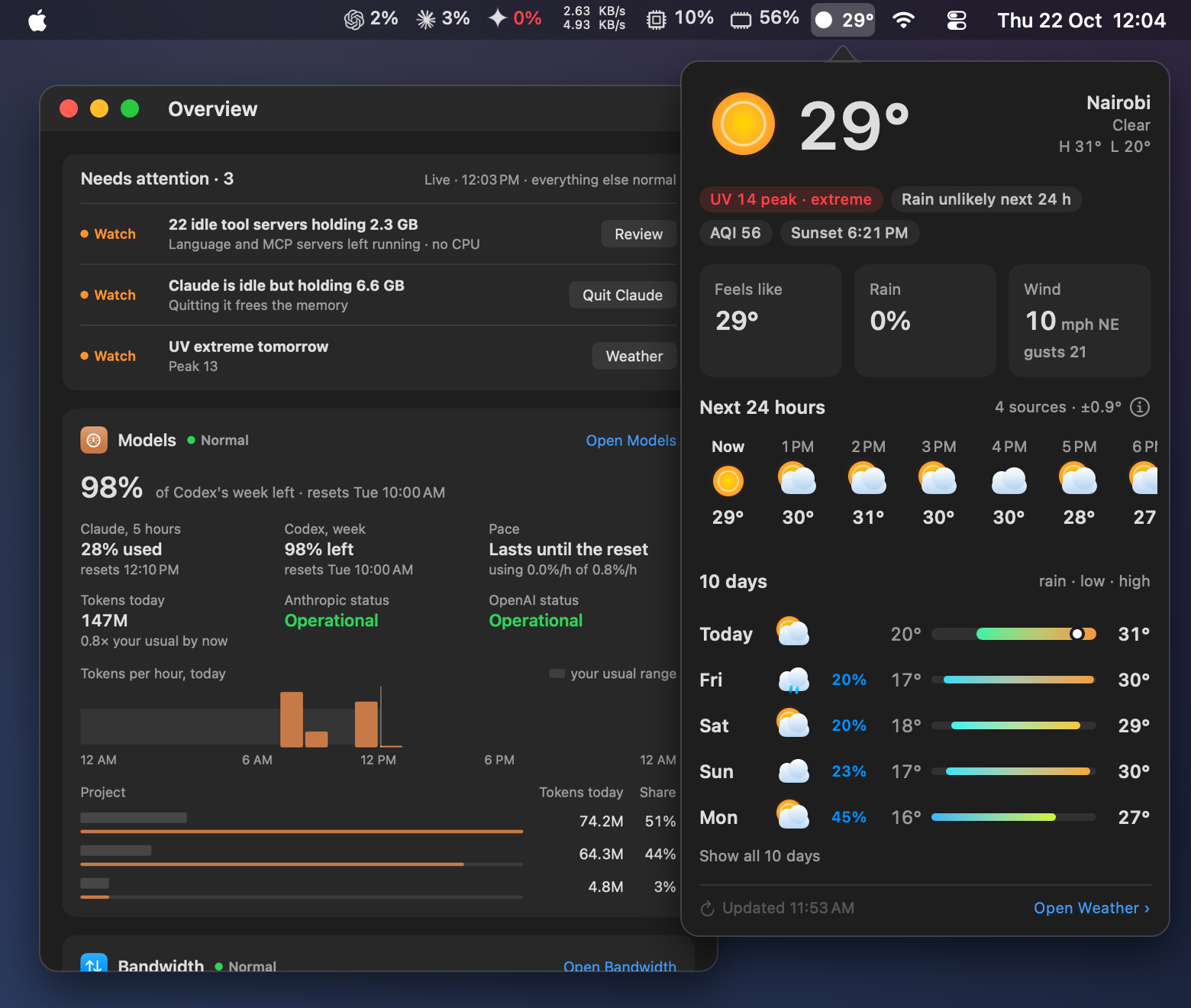
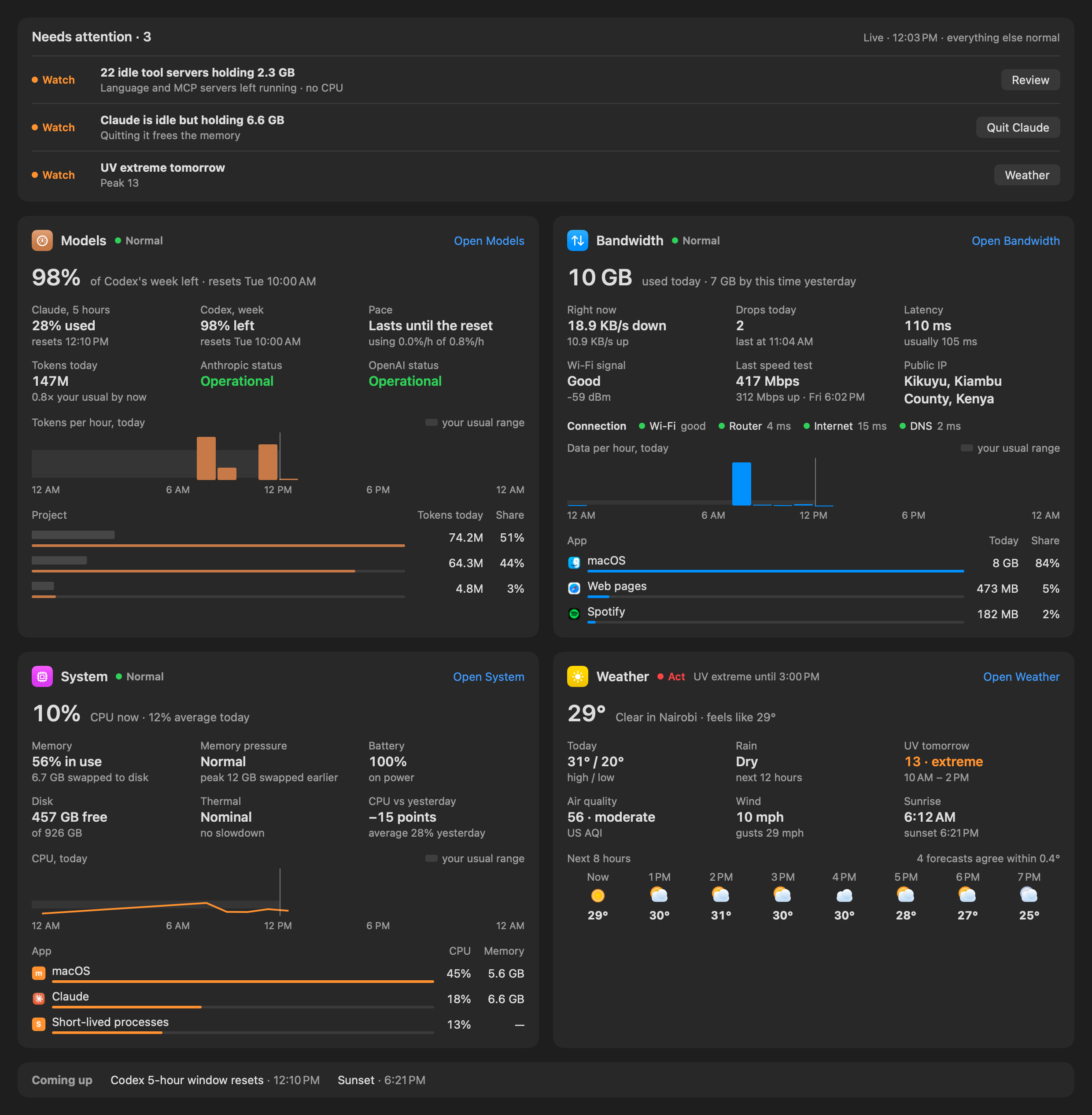
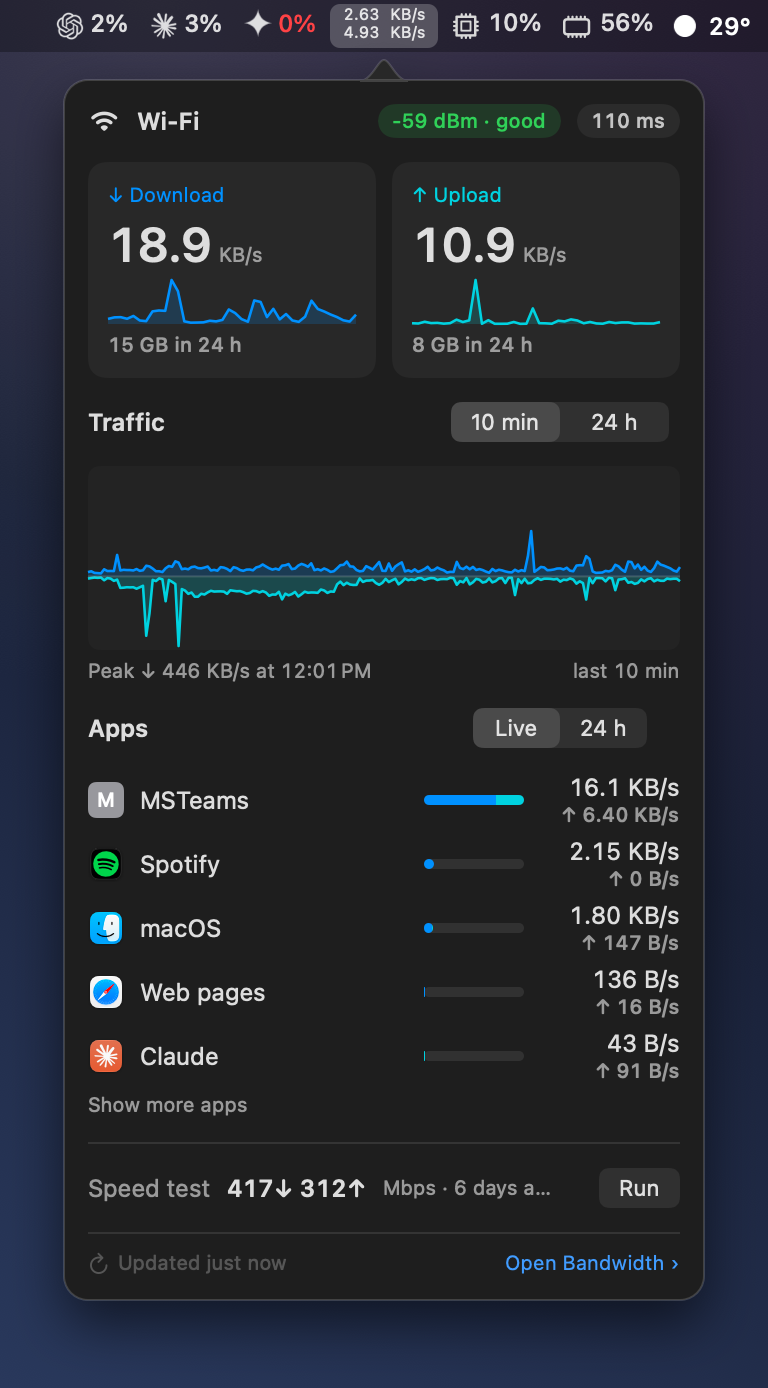
Click the menu bar item and a popover drops down with everything you'd open four separate apps to find. Live up and down rates. The 24-hour total. Your current Wi-Fi and signal strength. Local and public IP. The location the outside world thinks you're at. Whether you're online at all. The latest speed test. And a per-app table showing exactly which processes are using your bandwidth right now and over the last 1, 12, or 24 hours.

  • Live measurements — current rates and 24-hour totals at a glance.
  • Network identity — Wi-Fi, signal, local + public IP, advertised location.
  • Connection state — online / offline status plus the last speed test result.
  • Per-app traffic — sortable table with rolling 1h / 12h / 24h windows.
Bandwidth Meter popover showing live measurements, Wi-Fi and IP details, latest speed test, and a per-app traffic table with 1-hour, 12-hour, and 24-hour rolling windows.
Bandwidth Meter Settings panel — Display tab with menu bar metric, layout, units, scale, rounding, and font size.
Make it yours

Show only what you care about.

Pick what the menu bar shows — download, upload, both side by side, both stacked, or total traffic. Bytes or bits. Auto-scale or fixed (Kilo, Mega, Giga). Round to whole numbers or keep the decimals. Pick a font size that fits your crowded menu bar. The Monitoring tab tunes sampling interval, rate smoothing, and how long usage history is kept locally.

  • Display — what the menu bar shows and how it's formatted.
  • Monitoring — sampling interval, smoothing, retention.
  • Speed Test — manual or automatic at 1, 3, 6, 12, or 24 hour intervals.
  • Updates & Privacy — Sparkle behavior and local-storage details.
Download

First build.

Bandwidth Meter 1.0 is live — free to download, free to use. Live up and down rates, per-app traffic, Wi-Fi and public-IP details, outage detection, and built-in macOS network quality speed tests. Signed and notarized by Apple, delivered directly. Updates arrive automatically through Sparkle — no reinstall, no App Store.

Requires macOS 26.4 or later. Apple Silicon required. Apple Developer ID signed and notarized, distributed directly with Sparkle auto-updates.

It's the small panel you keep glancing at when something feels off — and you don't need it to lie to you.
FAQ

Reasonable questions.

Does Bandwidth Meter inspect my traffic?

No. The app samples lightweight per-process network counters and computes deltas to estimate rates. It does not read packet contents, decrypt anything, route traffic, install a Network Extension, run a VPN profile, or load a kernel/system extension.

How does the per-app attribution work?

macOS exposes per-process byte counters through its network statistics APIs. Bandwidth Meter samples those counters periodically while it's running and rolls them into per-app totals (grouping common helpers — Safari/WebKit under Safari, Electron helpers under their host app, system daemons under System Services). Historical totals only count usage observed while Bandwidth Meter was running; the app cannot reconstruct usage from before it was launched.

Does it work with a VPN?

Yes. Bandwidth Meter measures bytes leaving and entering your machine regardless of whether they go through a VPN tunnel. The Public IP and "Advertised Location" fields are especially useful for verifying a VPN — they show the IP and approximate geographic location the outside world thinks you're at, which is what most VPN providers' "are you connected?" pages also do, but without the round trip to a separate site.

Why not use the Ookla Speedtest CLI?

Two reasons. First, Apple ships networkQuality as a built-in command on every modern Mac — it tests against Apple's infrastructure with a methodology that captures latency under load, not just raw throughput. Second, requiring an Ookla install would have meant either bundling it (license concerns) or asking users to install it themselves (friction). The downside is that networkQuality numbers won't exactly match Ookla. They're consistent over time, which is what matters more for daily-driver comparison.

Why does the app ask for Location Services permission?

macOS treats your current Wi-Fi network name (SSID) as location-sensitive information, because knowing which Wi-Fi you're on can imply where you physically are. The Wi-Fi name display is opt-in — if you don't grant Location Services permission, everything else works and the Wi-Fi name field just stays blank.

Where does my usage history go?

It stays on your Mac, in a local SQLite store. Nothing about your bandwidth use, app activity, or speed test history is transmitted anywhere. The app does call ipapi.co to look up your public IP's approximate location, and Apple's infrastructure to run a speed test — both only when you ask for those.

Why isn't it on the Mac App Store?

Bandwidth Meter samples per-process network counters using APIs that aren't permitted under the App Store sandbox. The same constraint that makes the app useful — direct, low-overhead access to OS-level network statistics — is what keeps it outside the App Store. So it's distributed directly, signed and notarized by Apple, with Sparkle handling updates.

Open source

Free, MIT‑licensed, contributions welcome.

The source will live on GitHub alongside Model Meter as soon as the first release is cut. Read it, fork it, file an issue when something breaks, or open a pull request when you want the next version to do something it doesn't yet.

From the same studio
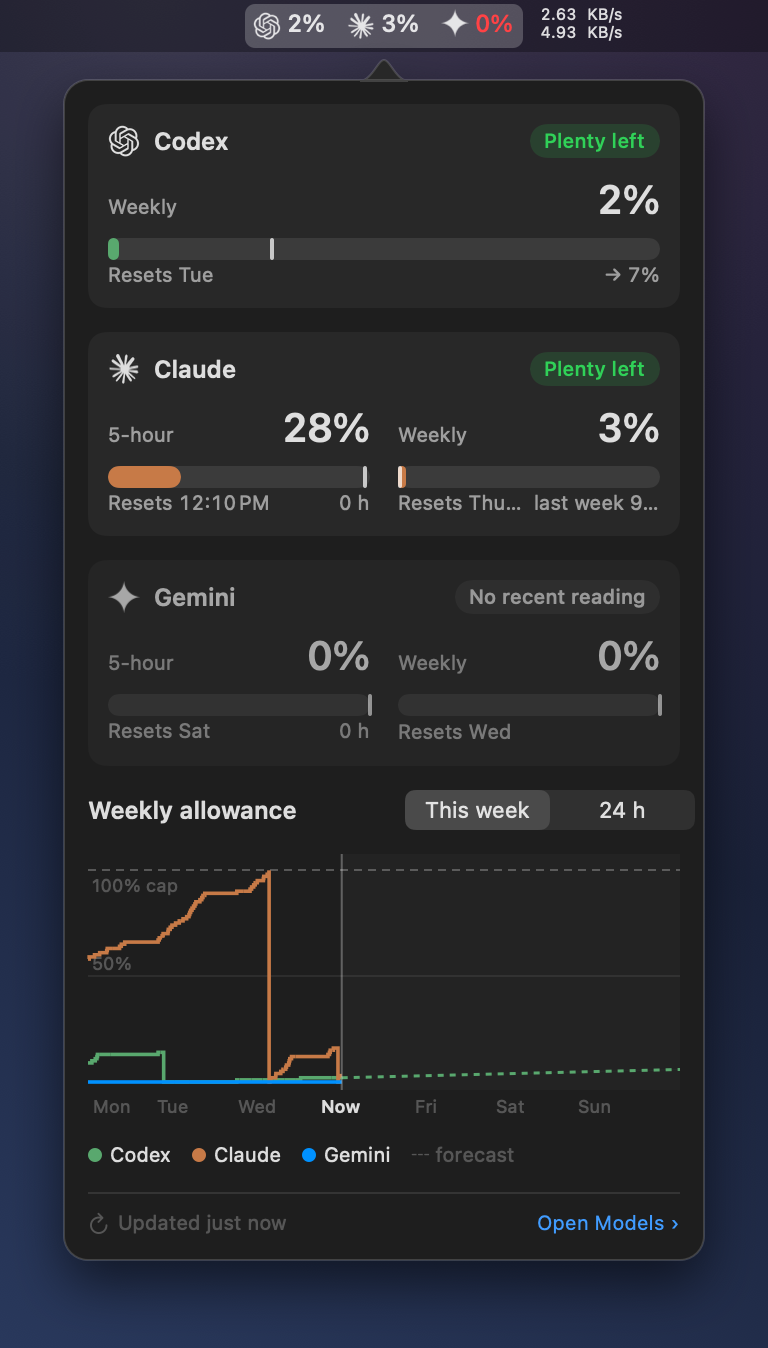
Model Meter A free macOS menu bar app showing Codex, Claude, and Gemini usage in one glance. Open source, MIT-licensed.

Not affiliated with, endorsed by, or sponsored by Apple, Ookla, or any of the network services Bandwidth Meter happens to detect on your machine. · Privacy · Feedback